Reviewing pull requests
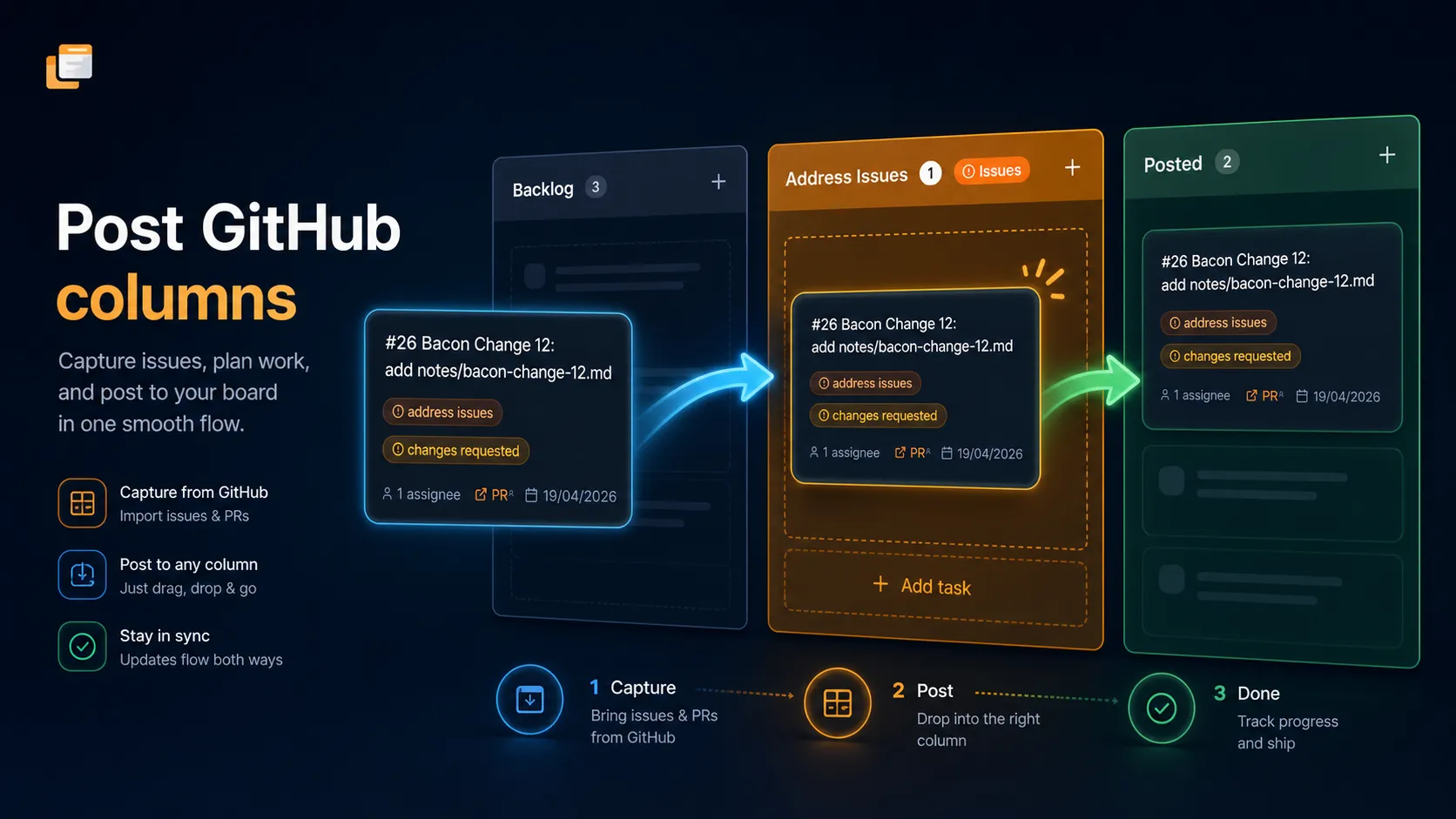
You can review a linked pull request without leaving GH Planner. Your review is sent to GitHub as you, and the task moves to the right column straight away.
Review actions
Section titled “Review actions”Open the task page and scroll to Discussion. Under the comment box you can pick one action to send along with your comment:
| Action | What it does on GitHub | Where the task goes |
|---|---|---|
| Approve | Submits an approving review | Approved |
| Request changes | Submits a changes-requested review | Address Issues |
| Close PR | Closes the pull request without merging | Closed |
| Merge PR | Merges the pull request into its base branch | Merged |
To review:
- Write your comment. It becomes the body of the review on GitHub.
- Tick the action you want.
- Select the submit button (for example Send Request Changes).
Leave every action unticked to post an ordinary comment.
Merging
Section titled “Merging”Merge PR merges the pull request into its base branch, just like the merge button on GitHub. It fails if GitHub would block the merge, for example if required checks haven’t passed, required reviews are missing, there are conflicts, or the PR is still a draft (Cannot be merged until marked ready for review).
Once a PR is merged, its discussion is closed (Discussion closed - PR has been merged).
Merge verification
Section titled “Merge verification”For extra protection, board owners can require an emailed code before anyone merges from the board.
To turn it on: open Board Settings, turn on Merge Verification (Require email code before merging a PR) and save.
When it’s on:
- Choose Merge PR and submit as usual.
- GH Planner emails you a verification code.
- Enter the code (format
XXXX-XXXX) in the Confirm Merge dialog. You can also use the link in the email. - The merge goes ahead.
Codes expire after 10 minutes. If you didn’t request a code, ignore the email; nothing is merged without it.
Reviewing on GitHub instead
Section titled “Reviewing on GitHub instead”You don’t have to review in GH Planner. Reviews, closes and merges made directly on GitHub are picked up too, and the task moves the next time the board is opened. See When it happens.